How do I report a note?
Reporting a note helps us improve the accuracy of your digital copies. We'd love reports on both good and bad notes, because every submission helps us better understand your handwriting style and refine our algorithms.
Written By Marc Tuinier
Last updated 3 days ago
Video walkthrough
Note: this video shows an older version of the app. A new video will be uploaded soon!
Before you start
Make sure your Nuwa Pen app is updated to the latest version. Note Report is available from app version 0.6.29 onwards.
Steps
1. Select the note you want to report
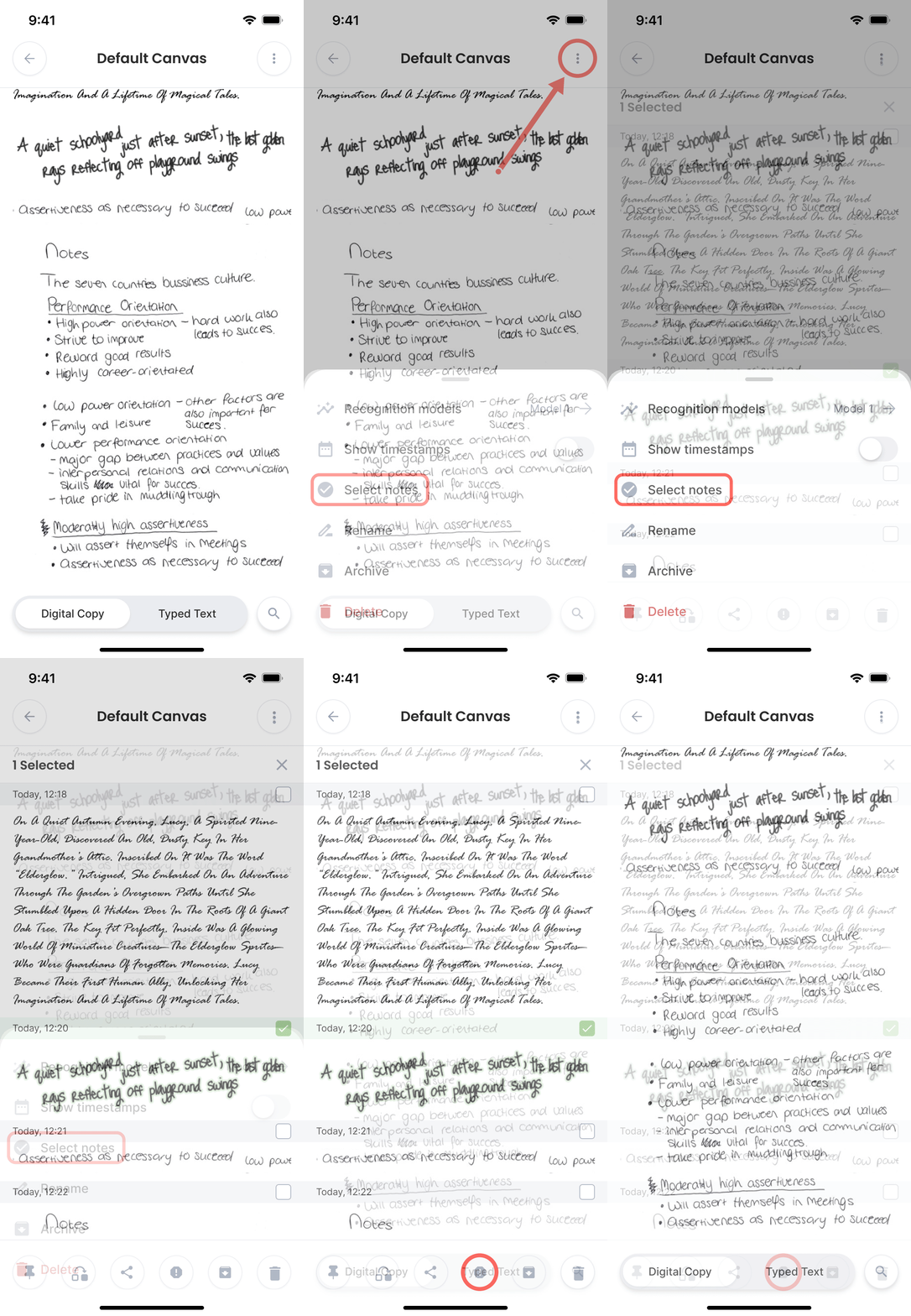
Tap the canvas to open your notes. Tap the three dots in the top-right corner and choose Select notes. Select the one note you want to report (you can report one note at a time), then tap the circled exclamation mark in the bottom bar.
2. Review what will be sent
You'll see a summary of the information that will be shared, including:
Images the pen recorded during writing
Sensor data captured by the pen
3. Agree and continue
On the Report An Issue screen, tap Agree And Continue. No information is sent until you confirm.
4. Rate the note
Choose whether the note is good or bad based on how accurately it reflects what you wrote.
5. Mark anything that looks off
Use the annotation tools to highlight anything that doesn't look right, such as spacing between letters, misread characters, or anything that differs from what you actually wrote. You can circle, dash, or highlight any area freely.
6. Show us what you wrote
Enter what you actually wrote in the provided field. This helps our machine learning model learn your handwriting style and improve accuracy over time.
7. Add optional writing context
Tap Next to reach the optional details screen. Here you can share anything about your writing style or environment, such as:
How you hold your pen (grip style, pressure, shaky or firm hand)
The surface you were writing on (notebook, loose paper, desk, etc.)
Any other context that might be relevant
This field is free-form and completely optional, but even a short note goes a long way.
8. Add a photo of your original handwriting
This step is especially helpful for bad notes. Tap Add picture and take a photo of what you actually wrote on paper. We use this to map your physical handwriting against the digital copy and pinpoint exactly where the algorithm went wrong.
9. Submit your report
Tap Report to send. It may take a couple of seconds, and then you'll see the Report Sent dialog. Tap Got It and you're done. Thank you for helping us improve Nuwa Pen!
Tips
Report good notes too. Positive examples are just as valuable as negative ones. They help us understand what accurate recognition looks like for your specific handwriting.
Be as specific as you can. The more detail you provide in the annotation and context steps, the more useful your report is to our team.
You can report any note at any time. There's no limit on how many notes you can report, one note per report.
Still need help?
If you run into any issues while submitting a report, contact us at support@nuwapen.com.
Was this helpful?
Still need help? Ask the team