How do I prepare for a support call?
Sometimes you need an extra pair of hands to troubleshoot, and that's where our one-on-one video support comes in. Here's how to get ready.
Written By Marc Tuinier
Last updated 4 months ago
What you'll need
Your pen, fully charged, and your case charging or fully charged. If either one isn't charging, take a look at this article first as it may save us some time on the call.
A small tool to reset your pen, in case we need it (a paper clip, thumbtack, or even a toothpick will do).
Two devices, ideally: your phone (with Nuwa+ installed), plus an iPad or computer so we can see and talk to each other on video while you share your phone screen. Only have one device? No problem, you can still share your screen using the steps below.
How to share your screen
Download Google Meet. Search for "Google Meet" in the App or Google Play Store, install it, and sign in with the same Google account you used to book the meeting.
Open the meeting, but don't tap "Join" yet. On the Meet screen you'll see the meeting title, a "Join" button, and your profile picture. Tapping "Join" automatically shares your camera — but we want to share your screen instead. So tap your profile picture or the meeting title rather than "Join."
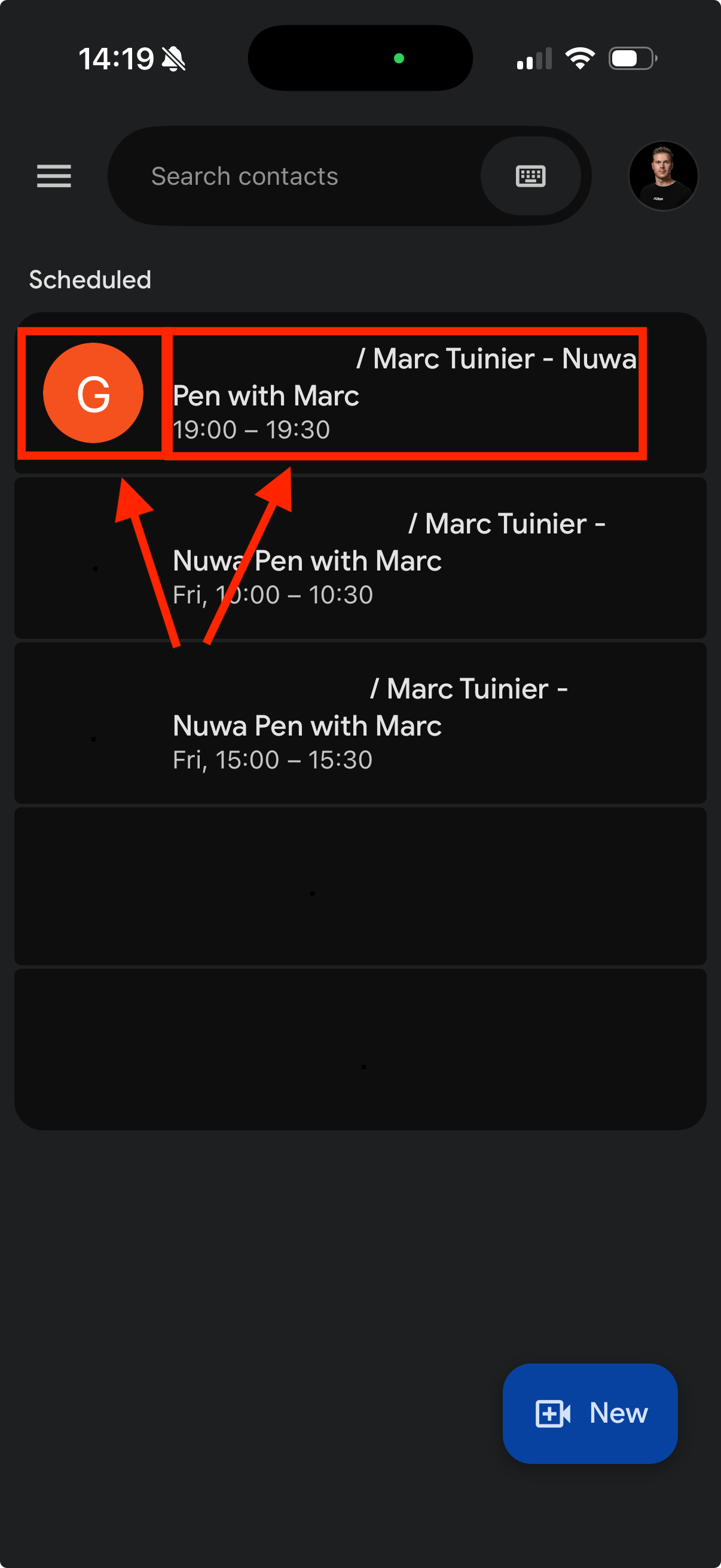
Tap either, don't tap join. Turn on screen sharing. On the next screen, look for a Share screen option (you may also see "Use companion mode" or "Join"). On some phones you'll need to swipe left or right to find it. Tap Share screen, then Start broadcast when prompted — and that's it, you're sharing your screen.
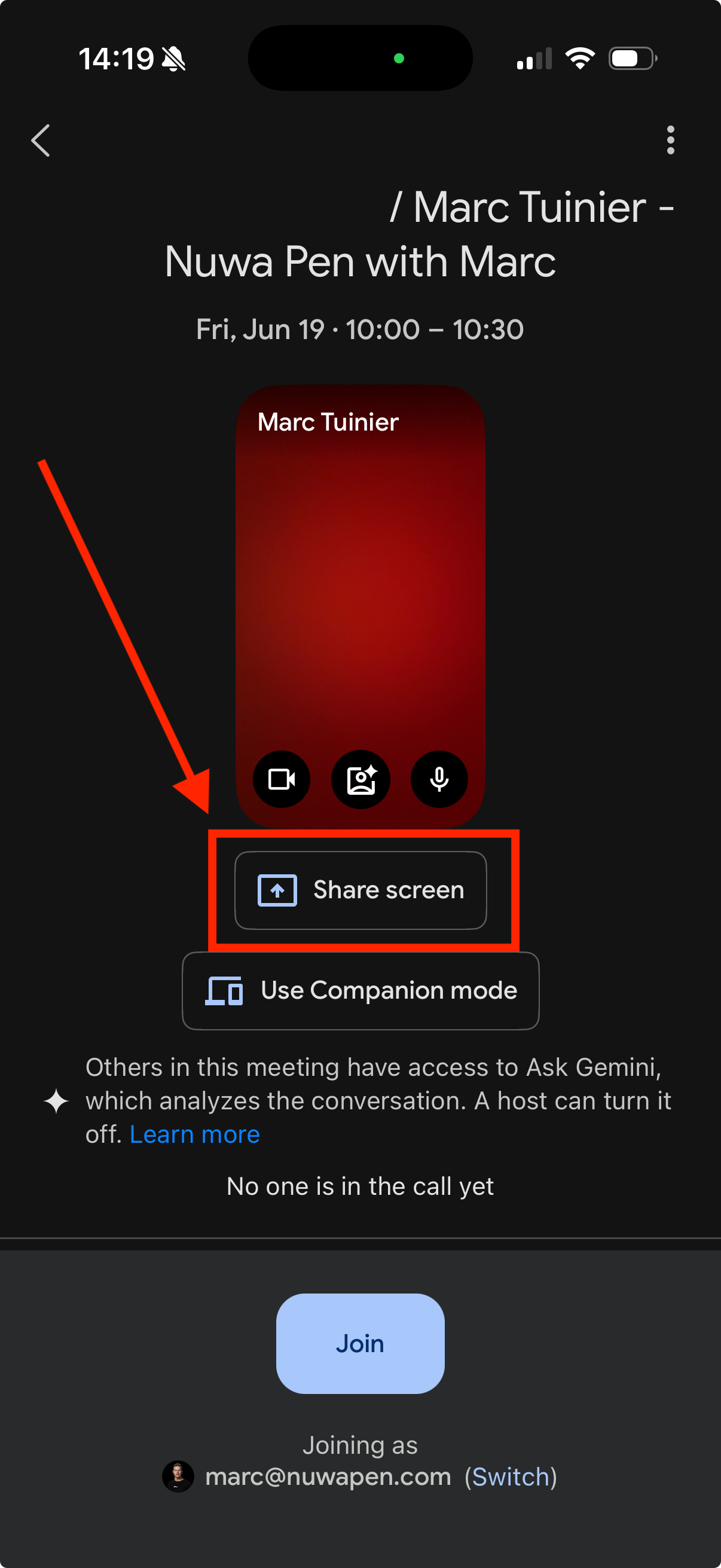
Tap Share Screen > Start Broadcast
Still have questions?
If anything else comes up before the call, just reply to the support email where you requested it. We are very happy to help.
Still need help? Ask the team